
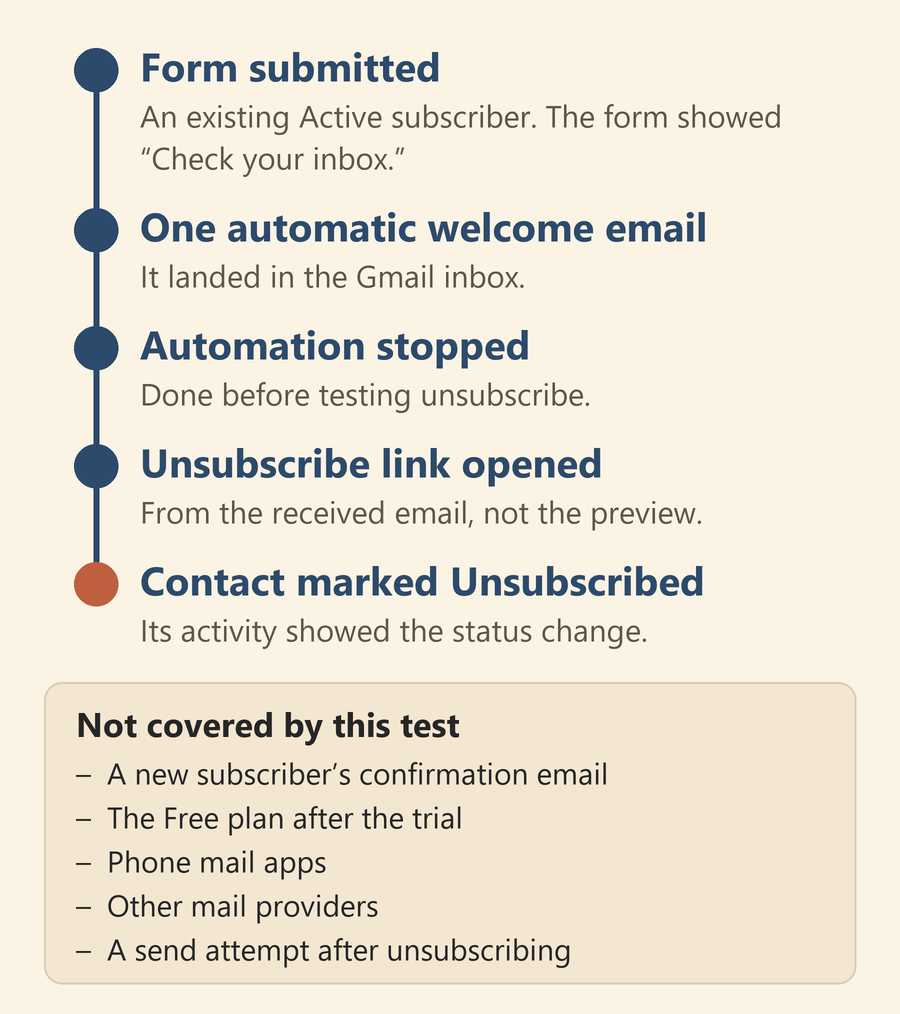
A welcome email can look finished in the editor and still leave a basic question open: what happens when someone submits the form, gets the message, and then decides to leave? We followed that path once in MailerLite. One automatic welcome email arrived in a Gmail inbox, and the unsubscribe link inside that email changed the contact's status to Unsubscribed.
This was a small test, and the conditions matter as much as the result.
Test conditions
- Date: October 24, 2026.
- Plan: a MailerLite 14-day premium trial. No card, no upgrade, no payment, and no temporary authorization.
- Subscriber: one address we control, already listed as an Active subscriber. This was not a brand-new signup.
- Form: MailerLite's hosted share form. It was not embedded on a website.
- Message: one automatic welcome email, checked separately from an earlier preview email.
- Mailbox: Gmail on desktop.
- End of test: we stopped the automation, then unsubscribed using the link in the received email.
Start with the form people actually submit
The form had an email field and a consent checkbox; we left the optional name field empty.
Our first submission left the email field blank and the consent box unchecked. It was blocked. Because both were missing at once, this shows only that this combined submission failed. We did not test each field on its own.
We then submitted the existing subscriber's address with the consent box checked. The form showed "Check your inbox."
Double opt-in was turned on, but no separate confirmation email showed up. MailerLite's double opt-in help page (last edited December 1, 2025; checked November 1, 2026) says that an Active subscriber who signs up again through a MailerLite form does not get another double opt-in email. What we saw matches that exception. It does not verify the confirmation journey for a brand-new address.
Check the received message, not just the preview
The workflow sent one automatic welcome email, and it landed in the Gmail inbox. We did not resend it.
Checking the received message required a closer look. Gmail put the new message in the same conversation as an earlier preview email and collapsed the repeated content. We expanded the new message and checked its details and body. Looking only at the conversation title could have mixed up the preview and the automated message.
The preview and the real message also differed in one more way. In our test, the unsubscribe link in the preview did not work, so we used the link in the actual automatic email.
For a small business testing its first welcome email, this distinction matters. A preview checks how a message looks. A form submission followed by an automatic email checks more of the process. Neither one, on its own, shows reliable delivery across your customers' inboxes.
Follow the unsubscribe link all the way through
We stopped the automation before testing unsubscribe. Then we opened the unsubscribe link in the received automatic email and confirmed the request.
The browser showed a page saying "You have successfully unsubscribed." In MailerLite, the contact was marked Unsubscribed, and its activity showed the status change. We did not edit the contact's status by hand.
The last workflow state we recorded was Stopped/OFF, with zero contacts in progress and one completed. We did not send anything after the unsubscribe, so this test does not show how a later send would be blocked.
What we would check before inviting customers
- Start with a brand-new address. Use an address you control that has never subscribed. Watch whether the confirmation email arrives, follow its link, and then note when the welcome email goes out. Do not infer that sequence from a test with an already Active subscriber.
- Test required fields one at a time. Leave out the email separately from the consent box, and note what the reader sees each time. Our combined test leaves those individual results unknown.
- Open the real message where your readers read mail. That includes a phone mail app. We only checked Gmail on desktop.
- Unsubscribe from the received message itself. Turn off a test automation first, then check the contact status and its activity, not only the success page.
- Check what remains after the trial. MailerLite's trial help page (last edited October 1, 2026; checked November 1, 2026) says that when the trial ends, the account reverts to the Free plan and Free plan limits apply. We did not run this setup on the Free plan.
What this test shows, and what it does not
This test covers one path for one existing subscriber: form, then automatic welcome email, then unsubscribe. It does not cover a new subscriber's confirmation email, the Free plan after the trial, phone mail apps, other mail providers, or a send attempt after someone unsubscribes. We would test those scenarios before using this signup flow with customers.
Test date: October 24, 2026. MailerLite help pages checked November 1, 2026.
Leave a Reply